
Consuming video content while on the move requires a dependable offline solution. Poor cellular reception, long commutes, and restrictive data caps often make live streaming impractical. To solve this, using a dedicated Youtube video downloader allows you to store your favorite tutorials, music videos, and independent clips directly on your hardware.
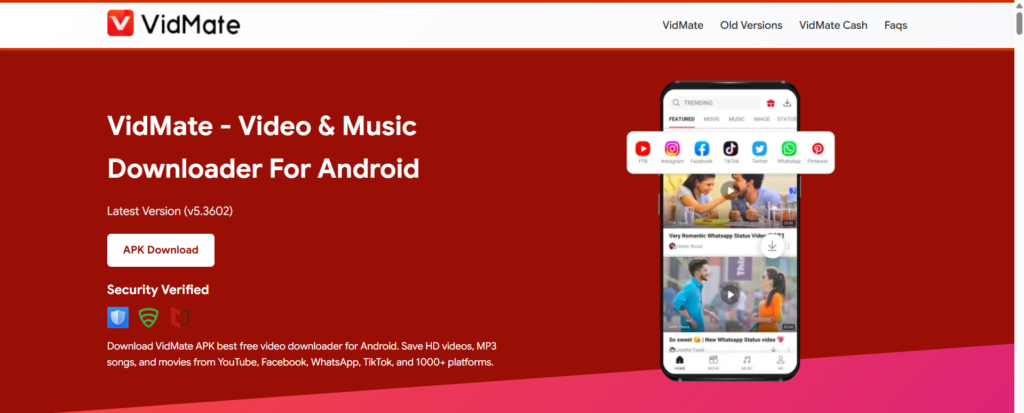
For Android users, VidMate is a powerful, free multimedia application designed specifically to bridge this gap. Beyond acting as an aggressive download manager, it offers built-in media playback and convenient file organization tools. It supports media extraction from a wide range of popular online platforms, including Facebook, Instagram, and TikTok, across varying resolutions up to 4K.
Part 1: How to Safely Download and Install VidMate
Because Google Play Store policies generally prohibit applications that allow direct extraction of YouTube source videos, you will not find the official application listed there. Instead, you must safely perform a manual installation using an Android Package Kit (APK) file.
Step 1: Download the Verified APK
Open your preferred mobile web browser and head over to the verified developer website or a trusted third-party app repository. Locate the latest stable application release and click download.
Step 2: Toggle System Permissions
Before you can open the file, your phone’s security framework needs clearance. Go to your Android device’s Settings, navigate to Security (or Apps & Notifications), and locate the Install Unknown Apps toggle. Grant your specific mobile browser permission to execute unauthorized files.
Step 3: Run the Installer
Pull down your notification shade or open your local “Downloads” file folder. Tap on the newly acquired installer file, select Install when prompted by the system dialog, and let the device complete the local package unpacking.
Part 2: Step-by-Step Guide on How to Use the App
Once setup is complete, pulling your favorite media items from the web is incredibly straightforward. The platform offers two distinct pathways to gather your files.
Method A: Utilizing the Built-In Browser Interface
- Launch the App: Open the application interface on your device. You will immediately notice a dashboard displaying popular hosting sites.
- Search for Content: Tap the internal address bar at the top of the interface. Type your video target keyword directly into the input area or type the direct URL string if you already have it.
- Execute the Extraction: When the player launches the chosen video stream, a bright, flashing Download Button (typically an arrow icon) will emerge at the edge of the screen. Tap this trigger to parse the active stream.
Method B: The Universal URL Link Relocation Strategy
- Copy the Link: Open your standard, official YouTube mobile application and navigate to the video package you want to store locally. Tap the contextual Share button below the video panel and select Copy Link.
- Redirect Processing: Paste that specific URL link into the application search utility. The system will bypass internal discovery and directly load the targeting parameters for instant file analysis.
Customizing Resolution and Formats Before Saving
Before the tool finalizes your transfer, a clear selection menu will pop up on your screen. Here, you can customize your output parameters based on your current device needs:
- Video Archives: Choose between entry-level 360p or 480p to conserve memory, or unlock clear crispness by picking 1080p Full HD or 4K configurations.
- Audio Extraction: If you only need background tracks or music files, select the dedicated audio tab to convert and download the asset as an isolated high-quality MP3 or M4A file.
Conclusion
Taking complete control of your media consumption means choosing utility tools that fit seamlessly into your mobile lifestyle. By using an all-in-one suite like VidMate, you eliminate the constant frustration of buffering streams and high data costs. Whether you use its integrated engine or feed it manual links, this utility establishes a comprehensive, high-speed pipeline for offline viewing, keeping your media accessible whenever and wherever you need it.